
Prefer to Listen? Play this quick summary instead!
Ergonomics training is one of the most practical ways to help office, hybrid and remote workers improve posture, reduce workstation discomfort and build safer desk habits.
Many workers spend hours at a computer without noticing how often they lean forward, lift their shoulders, twist to reach the mouse or sit without lower-back support. At first, poor workstation ergonomics may only feel like a stiff neck or tired shoulders. Over time, these small issues can affect comfort, focus, productivity and overall workplace wellbeing.
This workplace ergonomics training checklist is designed to help employees, HR teams, WHS managers and business owners review common workstation setup issues in a simple, practical way.
It covers chair setup, desk layout, keyboard and mouse position, monitor height, laptop ergonomics, sit-stand desk habits, movement breaks and signs your workstation may need attention.
For employers across Sydney and NSW, AusRehab provides workplace ergonomics training to help teams understand safer workstation habits and apply them in real workplace settings.
What should ergonomics training cover
An ergonomics training session should help employees understand how to set up their chair, desk, monitor, keyboard, mouse, laptop and daily work habits to support better posture and reduce unnecessary strain.
A practical workstation training checklist should include:
- Chair height, seat depth and lower-back support
- Monitor height, screen distance and glare control
- Keyboard and mouse position
- Laptop setup for hybrid and remote work
- Desk organisation and reach zones
- Lighting, eye breaks and regular movement habits
This is why office ergonomics training is useful. It helps employees understand what to check, what to adjust and how to build better workstation habits across office, hybrid and remote work environments.
Why Workplace Ergonomics Training Matters for Healthier Teams
Good workplace ergonomics training helps employees understand how their workstation affects the way they sit, move, reach, type and concentrate throughout the day.
It is not just about buying a better chair or standing desk. It is about teaching staff how to recognise risk factors, make practical adjustments and maintain healthier habits during everyday work.
A well-designed workstation can support better posture, reduce unnecessary reaching and help workers feel more comfortable during prolonged desk work. For employers, office ergonomics training can also support wellbeing, improve workstation awareness and reduce avoidable disruption caused by preventable discomfort.
Workplace ergonomics education is especially helpful for teams working across different environments, such as shared desks, home offices, hot desks, meeting rooms and hybrid setups.
💡 A good ergonomic setup should fit the worker, not force the worker to adapt to poor equipment, awkward reach zones or uncomfortable desk habits.
For businesses wanting structured support, AusRehab’s ergonomics training sessions are designed for employers, HR teams, WHS and safety managers, office managers and organisations managing hybrid or remote staff.
Signs Your Workstation May Be Causing Discomfort
A poor workstation setup does not always feel serious straight away. Many workers simply “put up with it” until the discomfort becomes part of the workday.
Common signs that your workstation may need adjusting include:
- Neck stiffness after computer work
- Lower back pain from sitting for long periods
- Sore shoulders or raised shoulders while typing
- Wrist discomfort or wrist pain while typing
- Eye strain, headaches or glare from the screen
- Numbness or tingling from awkward posture
- Fatigue from sitting still too long
- Feeling like you need to lean forward to see the screen
- Reaching too far for the mouse, phone or documents
- Sitting on the edge of the chair instead of using the backrest
These signs do not automatically mean there is a serious injury, but they are worth paying attention to.
Office ergonomics training helps employees notice these everyday warning signs early and understand what simple changes may improve workstation comfort.
1. Chair Setup for Better Office Ergonomics
Your chair is the foundation of your ergonomic workstation setup.
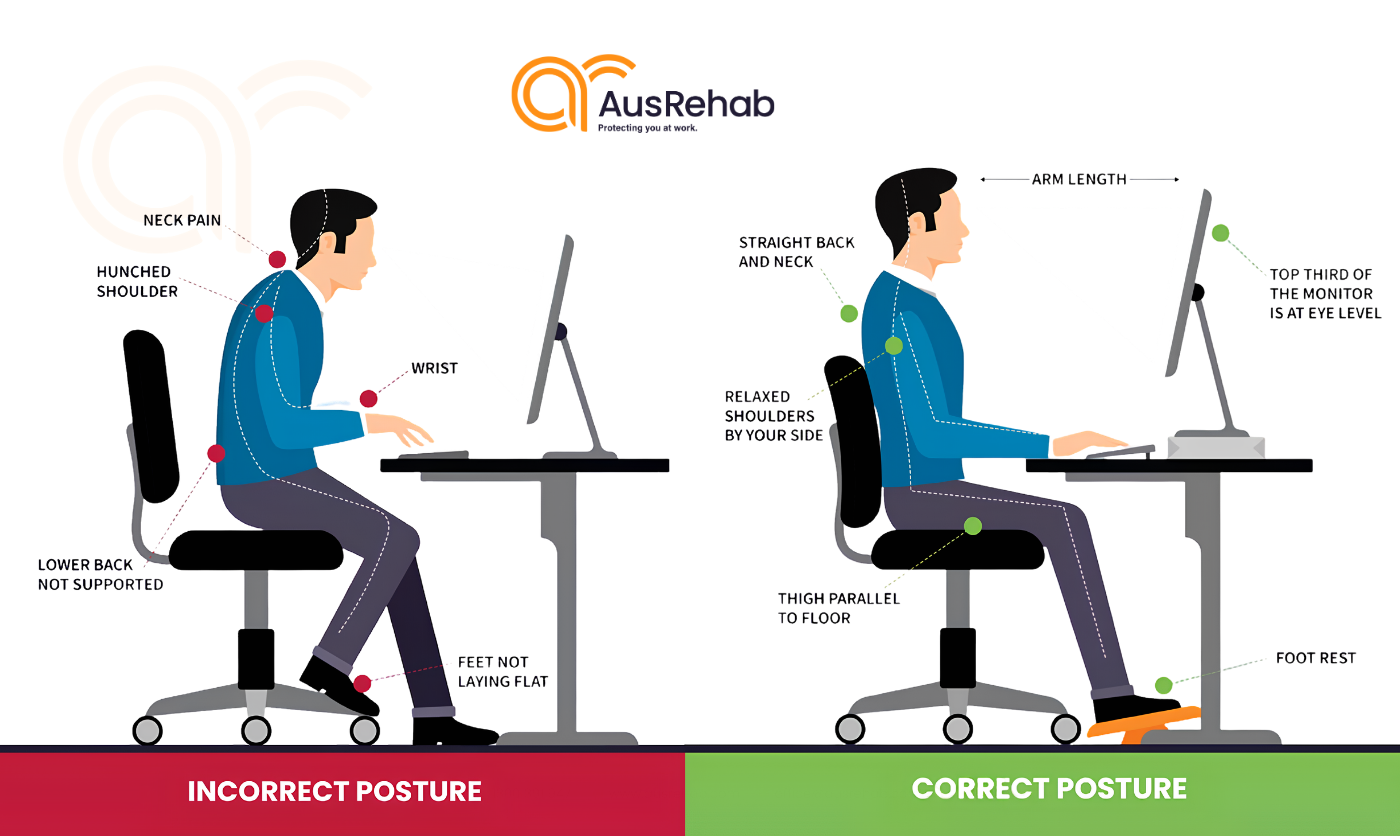
If your chair is too high, too low or poorly positioned, the rest of your desk setup becomes harder to fix. You may end up lifting your shoulders, leaning forward, crossing your legs or sitting without lower-back support.
Start by sitting all the way back into your chair. Your lower back should feel supported by the backrest. If your chair has an adjustable backrest, position it so it supports the natural curve of your lower spine.
Your feet should rest flat on the floor. If they do not reach comfortably, use a footrest. Your thighs should be supported and sit roughly parallel to the floor or angled slightly downward, depending on comfort.
When sitting, keep a small gap between the front edge of the chair and the back of your knees. A gap of around 2 to 5 cm, or about two to three fingers, is a helpful guide for many workers.
If your chair has armrests, check whether they help or get in the way. Armrests should generally sit just below elbow height so your shoulders can stay relaxed. If they stop you from moving close to the desk, they may need to be lowered or avoided while working.
Chair Setup Checklist for Employees
Chair Setup Checklist for Better Ergonomics
| What to Check | Recommended Position | Quick Fix |
|---|---|---|
| Seat height | Feet flat on the floor with thighs supported | Adjust chair or use a footrest |
| Back support | Lower back supported by the backrest | Adjust backrest or add a cushion |
| Seat pan | 2 to 5 cm gap behind the knees | Move seat position if adjustable |
| Armrests | Just below elbow height or out of the way | Lower or avoid armrests |
| Sitting posture | Sit back into the chair | Avoid perching on the edge |
Common Office Chair Ergonomics Mistakes
These are common chair setup problems seen in many office and home workstations:
- Sitting too far away from the backrest
- Feet not resting flat on the floor or a footrest
- Chair height set too high or too low
- Slouching forward while typing
- Wrists resting heavily on armrests while working
- Knees positioned higher than the hips
- Sitting for long periods without movement breaks
- Using a chair without lower-back support
💡 A chair does not need to be expensive to be useful, but it does need to support your body and allow you to work close to your desk without strain.
For workplaces managing broader injury prevention needs, Manual Handling Training and Workplace Rehabilitation may also support safer work practices beyond office desk setup.
2. Monitor and Screen Setup for Neck and Eye Comfort
Monitor ergonomics has a major impact on neck posture, eye comfort and how often workers lean forward.
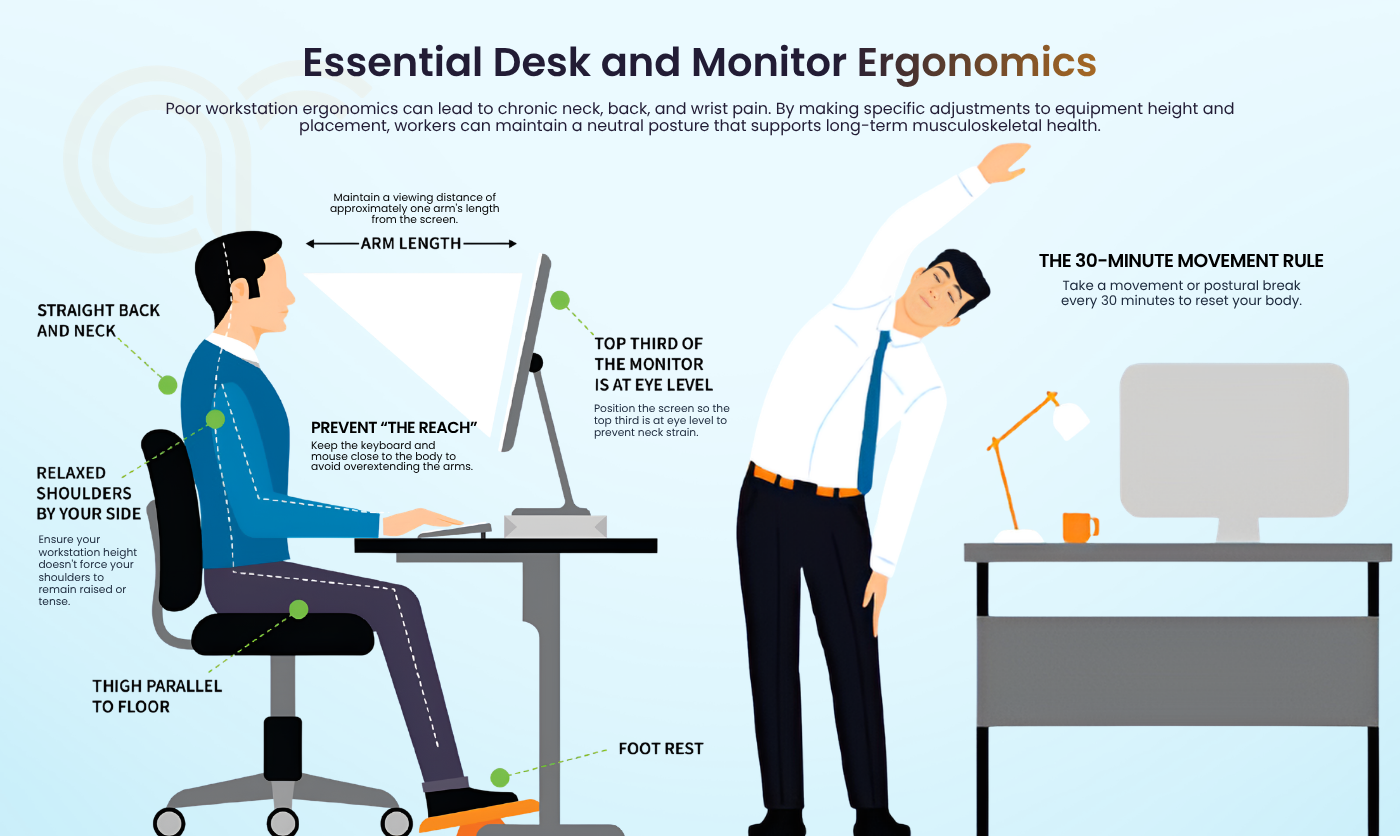
Your monitor should sit directly in front of you, not off to one side. The screen should be about an arm’s length away and adjusted based on your vision and comfort.
The top third of the screen should generally sit at or slightly below eye level when you are sitting upright. This allows your head to stay in a neutral position rather than constantly tilting down or forward.
Glare is also important. Avoid placing your monitor directly in front of a bright window or with a window directly behind it. If glare is a problem, adjust the screen angle, move the monitor, lower blinds or improve lighting.
Monitor Ergonomics Setup Checklist
Monitor Setup Checklist for Better Ergonomics
| What to Check | Recommended Position | Quick Fix |
|---|---|---|
| Eye level | Top third of screen at or slightly below eye level | Raise monitor or use a stand |
| Distance | About one arm’s length away | Move screen closer or further away |
| Angle | Slightly adjusted to reduce glare | Tilt the screen carefully |
| Dual monitors | Same height and angled inward | Align both screens |
| Glare | Minimal reflection on the screen | Adjust blinds, lighting, or screen angle |
If you use two monitors equally, place them side by side and angle them slightly inward. If one screen is your main monitor, keep that monitor directly in front of you and place the secondary screen to the side.
3. Keyboard and Mouse Setup for Neutral Wrists
Keyboard and mouse ergonomics are important because small repetitive movements can build up over time.
Your keyboard should sit directly in front of you and close to your body. You should not need to reach forward to type. If the keyboard has raised feet and this causes your wrists to bend upward, flatten the keyboard so your wrists can stay more neutral.
Your mouse should sit beside your keyboard at the same height. If the mouse is too far away, you may repeatedly reach with your shoulder and upper arm throughout the day.
The desk surface or keyboard tray should sit at or just below elbow height. This helps keep your forearms close to parallel with the floor and your shoulders relaxed.
Keyboard and Mouse Ergonomics Checklist
Keyboard and Mouse Setup Checklist for Better Ergonomics
| What to Check | Recommended Position | Quick Fix |
|---|---|---|
| Keyboard alignment | Directly in front of the body | Move keyboard to the centre |
| Mouse placement | Close to the keyboard | Reduce reach distance |
| Wrist position | Straight and neutral | Avoid bending wrists up or down |
| Elbow height | Desk at or just below elbow height | Adjust chair or desk height |
| Keyboard feet | Flat keyboard position | Avoid raising keyboard feet if wrists bend |
Common Keyboard and Mouse Setup Mistakes to Avoid
Avoid these habits where possible:
- Placing the keyboard too far away from the body
- Raising shoulders while typing
- Bending wrists upward for long periods
- Keeping the mouse too far from the keyboard
- Resting wrists heavily on hard desk edges
- Using the keyboard at an awkward angle
- Reaching repeatedly for the mouse
- Working for long periods without short movement breaks
For employees who type, click, design, write, process data or manage calls throughout the day, ergonomic workstation training can help reduce poor habits before they become normal.
4. Desk Organisation and Reach Zones
Your desk should help bring your work closer to you.
If your desk is too high, your shoulders may lift while typing. If it is too low, you may round your back or lean forward. Either way, poor desk ergonomics can contribute to neck, shoulder and upper back discomfort.
When typing, your elbows should sit close to your body at around 90 to 100 degrees. Your shoulders should feel relaxed, not raised. Your keyboard and mouse should be close enough that you do not need to reach forward or sideways all day.
Your desk should also give your legs enough space to move freely. Avoid storing boxes, bags, tangled cables or bins under the desk where your feet and knees need to go.
Place frequently used items, such as your phone, notebook, pens and documents, within easy reach. This reduces repeated twisting, stretching or leaning throughout the day.
Quick Ergonomic Desk Setup Checklist
Desk Setup Checklist for an Ergonomic Workstation
| What to Check | Recommended Setup | Quick Fix |
|---|---|---|
| Desk height | Elbows around 90 to 100 degrees while typing | Adjust desk or chair height |
| Shoulder position | Shoulders relaxed, not raised | Move closer to the desk |
| Leg space | Free movement under the desk | Remove clutter underneath |
| Desk clutter | Frequently used items within easy reach | Clear unused items |
| Keyboard placement | Directly in front of the body | Move keyboard closer |
| Mouse placement | Close to the keyboard | Reduce reaching distance |
| Monitor distance | About arm's length away | Adjust screen position |
| Sitting posture | Upright with lower back supported | Sit back into the chair |
This simple office ergonomics checklist can be used by workers in corporate offices, small businesses, call centres, reception areas and work-from-home setups.
5. Laptop Ergonomics for Hybrid and Remote Workers
Laptop ergonomics is a common issue for hybrid and remote workers.
Laptops are convenient, but they are not ideal for long periods of desk work on their own. When the laptop keyboard is at a comfortable typing height, the screen is usually too low. When the screen is raised to a better viewing height, the keyboard becomes too high.
This can encourage rounded shoulders, forward head posture, wrist strain and awkward typing habits.
If you use a laptop for more than short periods, especially more than an hour at a time, improve your workstation with:
- A laptop stand or stable riser
- An external keyboard
- An external mouse
- A comfortable chair with back support
- A screen height that allows a neutral neck position
For temporary setups, even simple changes can help. Raise the laptop on a stable stand, use a separate keyboard and mouse, and avoid working from a couch, bed or low coffee table for long periods.
💡 For remote workers, the goal is not to create a perfect office at home. The goal is to create a setup that supports better posture, clear screen viewing and comfortable movement throughout the day
Employers with hybrid teams may benefit from remote work ergonomics training so staff understand how to set up healthier workstations beyond the office.
6. Sit-Stand Workstation Setup
A sit-stand workstation can be helpful, but standing all day is not the answer.
The real benefit comes from changing positions regularly. Sitting too long can create stiffness. Standing too long can also create fatigue in the feet, legs, hips and lower back.
When standing, adjust the desk so your elbows remain close to a comfortable typing angle. Your shoulders should stay relaxed. Your monitor should remain at a comfortable viewing height so you are not tilting your head up or down.
If you are new to a sit-stand desk, start slowly. Stand for short periods and gradually build your tolerance. Wear supportive shoes and consider an anti-fatigue mat if the flooring is hard.
Sit Stand Desk Ergonomics Training Checklist
- Alternate between sitting, standing and walking
- Avoid standing all day without breaks
- Keep shoulders relaxed while typing
- Keep the monitor at a comfortable viewing height
- Avoid locking your knees while standing
- Shift weight gently between both feet
- Use supportive footwear
- Keep frequently used items within easy reach
Sit stand desk ergonomics training helps workers understand that movement is the goal, not simply swapping prolonged sitting for prolonged standing.
7. Lighting, Eye Strain and Daily Work Habits
- Workstation comfort is not only about furniture. Your lighting, screen use and movement habits matter too.
Poor lighting can cause squinting, leaning forward and eye strain. Bright reflections on your screen can also make you adjust your posture without realising it.
A simple habit for reducing screen-related eye fatigue is the 20-20-20 rule. Every 20 minutes, look at something around 20 feet away for at least 20 seconds. This gives your eyes a short reset during computer work.
Movement is also important. Take a micro-break or postural break every 30 to 45 minutes by standing, walking briefly, stretching or changing position.
Desk Organisation and Habit Checklist
Healthy Workstation Habits Checklist
| What to Check | Recommended Habit | Quick Fix |
|---|---|---|
| Reach zones | Frequently used items close by | Move phone, pens, and notes closer |
| Eye breaks | Use the 20-20-20 rule | Look away from the screen regularly |
| Movement | Take a micro-break every 30 to 45 minutes | Stand, stretch, or walk briefly |
| Lighting | Bright enough for documents | Add or adjust task lighting |
| Glare | Minimal screen reflection | Adjust blinds or screen angle |
💡 Postural breaks do not need to be complicated. Small, regular movements often make a bigger difference than one long stretch at the end of the day.
For workplaces with physically varied roles, Job Task Analysis, Pre-Employment Screening and Early Intervention can also support safer work planning.
Complete Workplace Ergonomics Training Checklist Table
Use this workplace ergonomics training checklist to quickly review workstation setup and identify practical adjustments that may improve posture, comfort and productivity throughout the workday.
Complete Ergonomic Workstation Checklist
| Area to Check | Correct Setup | Quick Fix |
|---|---|---|
| Chair height | Feet flat on floor, thighs supported | Adjust chair or use footrest |
| Back support | Lower back supported | Adjust backrest or add cushion |
| Seat pan | 2 to 5 cm gap behind knees | Move seat slightly backward |
| Armrests | Just below elbow height or out of the way | Lower or avoid armrests |
| Monitor height | Top third at or slightly below eye level | Raise or lower monitor |
| Monitor distance | About one arm's length away | Move screen closer or further |
| Monitor angle | Slight tilt to reduce glare | Adjust screen angle |
| Dual monitors | Same height, angled inward | Align screens evenly |
| Keyboard | Directly in front of body | Move closer and centre it |
| Mouse | Close to keyboard | Reduce sideways reach |
| Wrists | Straight and neutral | Avoid bending wrists up or down |
| Laptop | Screen raised with external keyboard and mouse | Use laptop stand and peripherals |
| Desk reach zones | Common items within easy reach | Reposition phone, notes, and pens |
| Lighting | Bright enough without glare | Adjust lighting or blinds |
| Eye breaks | 20-20-20 rule | Look away from the screen regularly |
| Movement | Break every 30 to 45 minutes | Stand, stretch, or walk briefly |
This checklist can also be used as part of an ergonomics program for employees or as a starting point for workplace ergonomics education.
When Should Workplaces Provide Ergonomics Training?
Workplaces should consider ergonomics training when staff spend long periods at desks, report discomfort, work across hybrid environments or use screen-based equipment for most of the day.
It may also be useful when:
- New office equipment is introduced
- Teams move to a new workplace
- Staff begin hybrid or remote work arrangements
- Employees report neck, back, shoulder or wrist discomfort
- WHS teams want to improve workstation awareness
- Employers want a proactive approach to workplace wellbeing
- Office workers are unsure how to adjust their chair, desk or monitor
Workplace ergonomics training services can help employees understand what good setup looks like and how to apply it to their own workstation.
For Sydney and NSW businesses, AusRehab’s ergonomics training is designed to support employers with practical, group-based education for office, hybrid and remote teams.
Benefits of Ergonomics Training for Employees and Employers
Ergonomics training gives employees practical workstation habits they can apply straight away.
For employees, it can support better posture awareness, improved workstation comfort, safer laptop and desk habits, and more confidence adjusting their chair, monitor, keyboard and mouse.
For employers, workplace ergonomics training can help create a more consistent approach to workstation safety across office, hybrid and remote teams. It also supports employee wellbeing by helping staff recognise early signs of discomfort and make simple changes before poor habits become part of the workday.
💡 The value of ergonomics training is not just knowing what a “good setup” looks like. It is helping employees understand how to adjust their own workstation in real situations.
What Happens During an Ergonomics Training Session?
An ergonomics training session usually teaches staff how to identify common workstation risks and make practical improvements to their setup.
At AusRehab, ergonomics training may cover posture, chair setup, desk layout, monitor height, keyboard and mouse position, laptop use, lighting, glare, movement breaks and day-to-day task demands.
The goal is to keep the session practical, clear and easy for employees to apply immediately at their own workstation.
Improve Workplace Comfort With AusRehab Ergonomics Training
A healthier workstation starts with small, practical habits.
By adjusting chair height, supporting the lower back, positioning the monitor correctly, keeping the keyboard and mouse close, improving laptop setup, managing glare and taking regular movement breaks, workers can create a more comfortable desk environment.
For employers, ergonomics training is a practical way to help staff understand these habits and apply them consistently across office, hybrid and remote work settings.
AusRehab supports employers and workers through workplace ergonomics training, Workplace Rehabilitation, Workplace Assessments, Manual Handling Training, Return to Work Plans and Early Intervention.
Ready to support a healthier, more comfortable workplace?
Book an ergonomics training session with AusRehab
or call 1300 391 947 to speak with the team today
FAQs About Ergonomics Training and Workstation Setup
What is ergonomics training?
Ergonomics training teaches employees how to set up and use their workstation in a way that supports better posture, comfort and safer work habits. It usually covers chair setup, desk layout, monitor height, keyboard and mouse position, laptop use, lighting, glare and movement breaks.
Why is workplace ergonomics training important?
Workplace ergonomics training is important because many workers spend long periods at desks without realising how their setup affects their body. Training helps staff recognise poor workstation habits and make simple improvements that support comfort and productivity.
How do I know if my workstation setup needs improvement?
Your workstation may need improvement if you regularly experience neck stiffness, lower back discomfort, sore shoulders, wrist strain, headaches, eye strain or fatigue during desk work. Ergonomics training helps employees understand what to check and how to make practical changes.
Can poor ergonomics cause neck and back discomfort?
Poor ergonomics can contribute to neck and back discomfort, especially when workers sit for long periods, lean forward, use a low monitor, lack lower-back support or work with raised shoulders.
What is the correct monitor height for desk work?
Your monitor should generally be directly in front of you, about an arm’s length away, with the top third of the screen at or slightly below eye level. This helps support a more neutral head and neck position.
How often should employees take breaks while working at a desk?
A helpful habit is to take a short movement or postural break every 30 to 45 minutes. This can include standing, walking briefly, stretching, looking away from the screen or resetting posture before returning to work.
What is the 20-20-20 rule for computer work?
The 20-20-20 rule means that every 20 minutes, you look at something around 20 feet away for at least 20 seconds. It is a simple habit that can help reduce eye strain during screen-based work.
What is the best sitting position for office workers?
The best sitting position is one that supports the lower back, keeps feet flat on the floor or on a footrest, allows relaxed shoulders and keeps the keyboard and mouse close to the body.
Are sit-stand desks better for posture?
Sit-stand desks can help when used properly, but they are not about standing all day. The main benefit is being able to alternate between sitting, standing and moving throughout the workday.
What is the best ergonomic setup for working from home?
A good home office setup includes a supportive chair, a desk at a comfortable height, a monitor or raised laptop screen, an external keyboard and mouse, good lighting and regular movement breaks.
Can laptop use cause poor posture?
Laptop use can contribute to poor posture when the screen is too low and the keyboard is fixed in the same position. A laptop stand, external keyboard and external mouse can help improve the setup.
What happens during an ergonomics training session?
An ergonomics training session usually covers posture, chair setup, desk layout, monitor height, keyboard and mouse placement, movement habits and practical tips employees can use at their workstation.
When should workplaces provide ergonomics training?
Workplaces should consider ergonomics training when employees work at desks for long periods, report discomfort, move to hybrid work, use shared workstations or need practical guidance on safe workstation setup.
Does AusRehab provide workplace ergonomics training for office workers?
Yes. AusRehab provides workplace ergonomics training for office, hybrid and remote teams across Sydney and NSW.
Does ergonomics training help reduce workplace injuries?
Ergonomics training can help employees understand common workstation risks and make practical changes that may reduce strain linked to poor posture, prolonged sitting and awkward equipment positioning.
Can ergonomics training improve employee productivity and comfort?
Yes. When employees are more comfortable and understand how to adjust their workstation, they may find it easier to focus, maintain better posture and work with fewer avoidable discomfort issues.
How can I book an ergonomics training session with AusRehab?
You can contact AusRehab to discuss workplace ergonomics training for your team.